
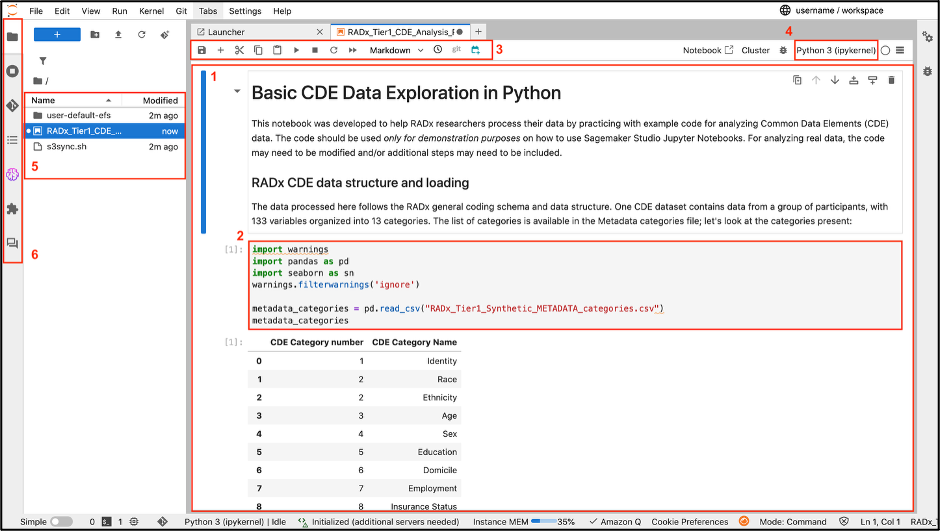
The main elements of JupyterLab editor are:
- Notebook: A document containing analysis code, outputs, and any additional markdown or text.
- Cell: A single section of a notebook where to enter code, markdown, or text.
- Toolbar: Perform the most common notebook actions, including:
- Save
- Insert cell below
- Cut selected cell
- Copy selected cell
- Paste from clipboard
- Run selected cell
- Interrupt the kernel
- Restart the kernel
- Restart the kernel and run all cells
- Change cell type (i.e. Code, Markdown, Raw)
- Launch terminal
- Environment: Displays the current notebook kernel type.
- File Browser: Displays lists of folders, notebooks, and other files.
- The Personal Studio environment is a private. personal Amazon EFS directory
- Left sidebar: Contains tabs to access the following functionalities.
- File Browser: Displays lists of folders, notebooks, and other files.
- Running Terminals and Kernels: View current kernels and terminals running in JupyterLab. Optionally shut down all or select resources (i.e., notebooks, terminals, kernels, apps, and instances).
- Git: Connects to a Git repository for Git tool and operation access.
- Table of Contents: Automatically generated for each notebook, Markdown file, or Python file open to navigate the document’s structure with clickable entries.
- Extension Manager: Enables and manages third-party JupyterLab extensions.
- Jupyter AI: A JupyterLab tool to explore generative AI models and integrate them into notebooks.
The default workspace environment is a ml.t3.medium (2 vCPU, 4 GiB memory) instance type.
To create a new JupyterLab space:
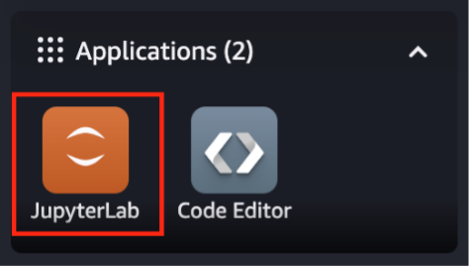
- When the Workbench is launched, select “JupyterLab” from the “Overview” section, or select “JupyterLab” from the “Applications” in the left panel (Figure 2).
- Select "+ Create JupyterLab space" in the upper right corner of the JupyterLab page
- In the “Create JupyterLab space” dialog, specify a name for the space in the “Name” field. To finish, click “Create space.”
- Note: Because the platform is shared, workspaces must have a unique name. If the workspace name already exists, the following error will appear at the bottom of the page (Figure 3)
Figure 3: Error Message for Workspace Name Exists



To launch a JupyterLab space:
- From the Workbench Home page, select “JupyterLab” from the Overview section, or select “JupyterLab” from “Applications” in the left panel (Figure 2).
- Select “Run” in the Action column of the JupyterLab space to start the workspace (Figure 4). This may take up to a minute to start.
- Once the status changes to “Running”, select the “Open” icon in the Action column to launch JupyterLab in a new tab (Figure 5).
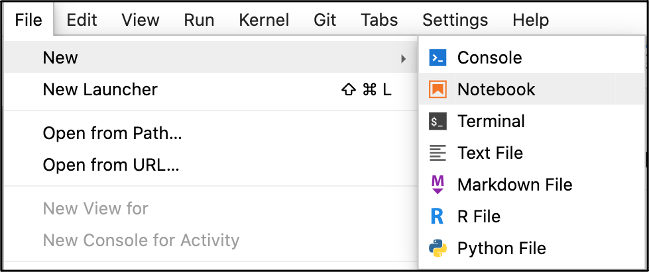
- From the landing page, select “File,” “New,” and “Notebook” (Figure 6).
- In the “Select Kernel” dialog, select a kernel on the dropdown menu. To finish, click “Select”, which launches the notebook.
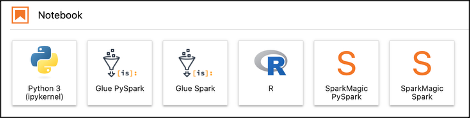
- From the Launcher page, click a preferred kernel in the Notebook section (Figure 7).



To create a new notebook:


To upload files from a local machine into a JupyterLab space:
- In the left sidebar, choose the “File Browser” icon.
- In the File Browser, choose the "Upload Files” icon.
- Select the files to upload and choose “Open.”
- Once the file appears in the home folder, double-click the file to open it in a new tab.
To download a file locally:
- In the left sidebar, choose the “File Browser” icon.
- Right click the file and select “Download.”
To download an entire folder locally:
- From the menu, choose “File,” “New,” and “Terminal”, which will launch a Terminal in a new JupyterLab tab.
- Type the following command replacing folder_name and /path/to/folder: zip -r -X folder_name.zip /path/to/folder
- Once the folder is zipped and it appears in the File Browser, right click the .zip file and select “Download.”
Git repositories can be cloned into the JupyterLab home folder using the following steps:
- Select the Git icon in the left sidebar.
- Choose “Clone a Repository.”
- In the Clone Git Repository window, enter the Git URL (for example, https://github.com/aws/amazon-sagemaker-examples.git)
- Under “Project directory to clone into,” enter the path to the local directory where the cloned directory should exist, otherwise Studio will clone the repository into the home directory.
- Choose “Clone,” which will automatically open a new terminal window and clone the repository. This may take up to a minute depending on the repository size.
- If the repository requires credentials, a prompt will appear to enter a username and personal GitHub account access token.
- When complete, the File Browser will open, displaying the cloned repository.
- Choose the Git icon to view the Git user interface, which tracks the repository.
- To track a different repository, open the repository in the file browser and click the Git icon.
Environments can be customized by installing and removing extensions and packages as needed. Any installed extensions and packages installed on the environment will persist. To create persistent conda environments in the JupyterLab application, use the following steps:
- Open a JupyterLab space.
- From the landing page, select “File,” “New,” and “Terminal”.
- Within the terminal, create a new conda environment, replacing myenv with the desired environment name:
conda create -n myenv - Activate the environment
conda activate myenv - Install any necessary packages for the environment, for example:
conda install numpy pandas - Install the ipykernel to create a kernel option. This step can be skipped if it has already been installed:
conda install ipykernel - Add the new conda environment to the Jupyter kernel, changing the --display-name option as preferred:
python -m ipykernel install –-user --name myenv --display-name "MyEnvironment" - Verify installation of the kernel:
jupyter kernelspec list - When a notebook is launched, the new kernel should appear. If the kernel is not listed, close the tab and reopen the JupyterLab space.
To access curated public and synthetic datasets on the RADx Data Hub’s Data Access page, follow the Public Data Tutorial
Datasets from the AWS Registry of Open Data, an AWS-hosted repository of more than 400 publicly available datasets, can be copied into a JupyterLab environment using the following steps:
- Identify a dataset of interest and find the associated Amazon Resource Name (ARN).
- For example: NIH NCBI Sequence Read Archive (SRA)
- ARN: arn:aws:s3:::sra-pub-src-1
- The bucket name is sra-pub-src-1
- From the JupyterLab landing page, select “File,” “New,” then “Terminal.”
- Enter the following command: aws s3 sync s3://sra-pub-src-1 .
- Replace sra-pub-src-1 with a selected dataset bucket name.
Notebooks launch with the minimum instance type available by default. The minimum instance type is appropriate for most tasks, however, a larger instance can be requested by submitting a Support Request. Follow the instructions in the User Support Requests Tutorial and select “Workbench Support” when choosing a Request Type. Please provide as much detail as possible in the request for the support team to determine the best suitable environment. For more detailed information about available instance types and their performance capabilities, see Available Studio Instance Types.
If an added Workbench file does not appear in the File Browser of JupyterLab, the workspace should be resynced. Close the JupyterLab tab, and refresh the My Approved Data page. Then, follow the steps to relaunch the JupyterLab page. If the files still do not appear, the workspace may need to be manually synced with the following steps:
- From the File menu, click “File,” “New,” and “Terminal.”
- Enter the following into the Terminal: ./s3sync.sh
If the files in a workspace are still missing, please submit a Support Request.